Introduction
[External Link] Scheduling Privileges allow you to schedule, edit, or delete meetings and run reports.
Requirements
- Zoom License
- Scheduling privileges to the account
- Cloud recordings access for Scheduling Privileges
- Reports access for Scheduling Privileges
Instructions
How to access Zoom meetings using Scheduling Privileges
-
Log into your Zoom account:
-
Go to https://pima.zoom.us .
-
Click Sign in.
-
Sign in with Single Sign On (SSO).
-
Go to the meetings tab:
-
Click the meetings tab in the left pane.
-
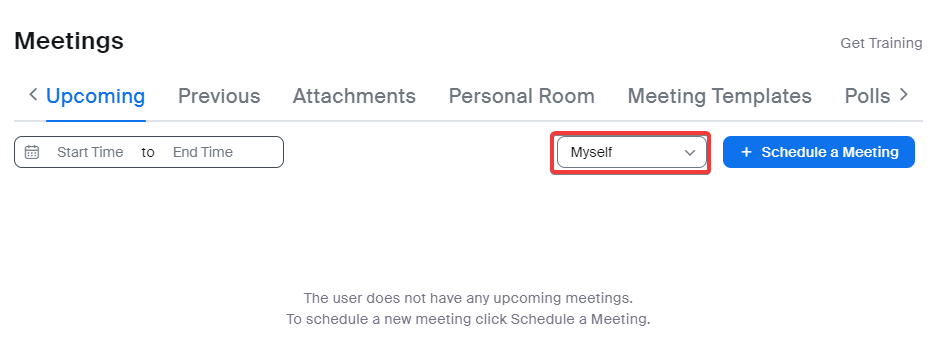
Click on the account drop-down.
-
Select the account you want to access.
-
Start, edit, or delete the meeting:
-
You will see the meetings in your shared meeting account.
-
You can start the meeting, edit, or delete meetings from the shared meeting account.
How to Schedule a Meeting using Scheduling Privileges
-
Log into your Zoom account:
-
Go to https://pima.zoom.us.
-
Click Sign in.
-
Sign in with SSO.
-
Schedule a meeting:
-
In the Meetings tab, click + Schedule a Meeting.
-
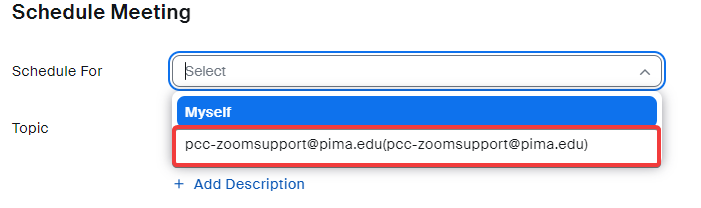
Click the “Schedule For” drop down and select the shared meeting account.
-
Fill out the rest of the meeting information.
Run reports using Scheduling Privileges
-
Log into your Zoom account:
-
Go to https://pima.zoom.us.
-
Click Sign in.
-
Sign in with SSO.
-
Access the reports:
-
Click on the Reports tab.

-
For Usage reports:
-
Navigate to the reports tab.
-
Click the Usage option.

-
Enter the date range for the meetings you would like to report on.
-
Click the “My Meetings” drop-down and select the account on which you want to run the report.
-
Click search.
-
For other meetings reports:
-
Navigate to the reports tab.
-
Click the meetings option.
-
Click on the Click the “My Meetings” drop-down and select the account on which you want to run the report.

-
Enter the information for the type of report you want to run, including the date information.
-
Click Search.